Does GoHighLevel have a Dialer?

The short reply to this query is that “yes,” GoHighLevel has a powerful dialer, which lets users automate the call queue.
GoHighLevel has a built-in dialer that integrates directly into your CRM dashboard. You do not need separate software or extra subscriptions. All your call data stays in one place where your team can access it. Phone numbers connect through Twilio or LeadConnector, the same systems GoHighLevel uses for text messages and voice features.
This article covers three calling methods available and the setup process. Learn about features included in your plan and real limitations. Decide if the GoHighLevel dialer works for your business needs.
In addition, at LeadsFlex we will give you a special and limited 30-day free trial bonus and a free consultation with our team to unleash GoHighLevel to its full potential!
What is the GoHighLevel Dialer?
The GoHighLevel dialer is a calling system inside your dashboard. You make outbound calls without leaving the CRM platform. It works through Twilio or LeadConnector, which handles your call routing and recording.
Your team can record calls, drop voicemails, and track who answered. Notes attach automatically to each contact after the call ends. Call data stays in your CRM forever for your whole team to access.
Never miss: How to integrate Google Calendar in GoHighLevel: Simple Steps
How a Power Dialer Works in GoHighLevel
A power dialer automatically routes leads to sales representatives. The system filters qualified leads and assigns them efficiently. This increases call volume and improves lead distribution across your team.
The Three Types of Calling Methods Available
GoHighLevel offers different dialer options based on your team size and calling needs. Understanding which one matches your business helps you pick the right approach.
1. Manual Dialer for Individual Calls
Click on a contact and press the phone icon to call them. You dial one person at a time. This works for follow-up calls or small teams. No automation, no lists, no queue. Your team makes calls as needed without loading a list.
2. Power Dialer for Team Call Campaigns
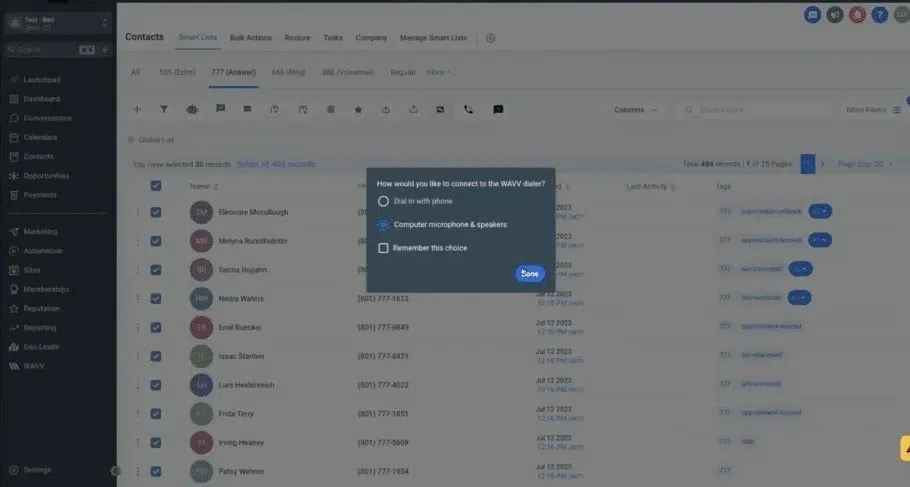
Load a list of leads into the power dialer. It dials numbers one after another. Your team focuses on conversations, not clicking. Features include call recording, voicemail drops, and disposition tracking.
Sales teams prefer the power dialer. It costs nothing extra because it is included. Most GoHighLevel users rely on this option for outbound calling.
3. Predictive Dialer for High-Volume Call Centers
This dialer dials multiple numbers at once. Calls only go to available agents when someone answers. GoHighLevel does not have this built-in yet.
Some teams add tools like Kixie or JustCall for predictive calling. These require separate subscriptions and extra setup. They cost more than the built-in dialer.
What You Actually Get With Power Dialer Features
The Power Dialer includes several capabilities that help your team call faster and track results better.
It captures every conversation automatically. You can download recordings for training or compliance purposes. Your team learns what works during real calls.
Drop leaves a pre-recorded message without waiting. One click and your message plays for people who did not answer. No need to repeat the same voicemail dozens of times.
Lets you mark what happened on each call. Options include no answer, interested, not interested, or follow-up later. This data helps you understand what works.
Pulls up contacts as you type numbers. The system auto-suggests matching names instantly. You do not waste time hunting through contact lists.
Let you document details right after the call. Notes attach to the contact timeline permanently. Your team never forgets what was discussed.
Sends text messages to leads who did not pick up. The text appears in the conversation thread. Nothing gets lost between different platforms.
Uses an area code matching your target market. Local numbers get more callbacks than generic or out-of-state numbers. Your answer rate improves when callers recognize the area code.
Display inside the contact view. Your team stays on message during calls. New team members learn what to say.
Power Dialer Requirements Before Starting Out
Power Dialer comes included in GoHighLevel bundles that provide dialer access. Different plans serve individual users, small agencies, and large organizations. Understanding which plan includes Power Dialer helps you choose the right option.
How to Set Up the Dialer in Five Steps
Setting up the dialer takes about ten minutes if your account is ready. You need to have your Twilio account connected or use LeadConnector. After that, the process is straightforward.
Pro Tip
Ensure your Twilio account is connected to GoHighLevel for smooth integration.
What Works Well With GoHighLevel Dialer
The dialer is built directly into your CRM. You call and text from the same dashboard without switching tools. This saves time and reduces mistakes from lost information.
Setup takes about ten minutes if you have Twilio connected. Call recording helps with compliance without extra software or fees. Disposition tracking lets you sort contacts based on their responses.
The power dialer costs nothing extra in your subscription. You only pay for actual call minutes through Twilio or LeadConnector. There is no monthly fee just to use the calling feature.
Real Limitations You Should Know Before Starting
The GoHighLevel dialer has real limitations that matter for certain teams. Understanding these helps you decide if you need other tools. Consider these constraints before committing to the dialer for your business.
Common Problems and How to Fix Them
Dialer issues happen, but most have straightforward solutions available. Check these common problems and fixes before contacting support. Most problems stem from simple configuration or connection issues.
Comparison: GoHighLevel Dialer vs Other Options
| Feature | GoHighLevel | Kixie | JustCall | SalesMsg |
| Built-in to CRM | Yes | No | No | No |
| Free with plan | Yes | No | No | No |
| Power dialing | Yes | Yes | Yes | Yes |
| Predictive dialing | No | Yes | Yes | Yes |
| Call recording | Yes | Yes | Yes | Yes |
| Voicemail drop | Yes | Yes | Yes | Yes |
| SMS from dialer | Yes | Yes | Yes | Yes |
| Multi-line calling | No | Yes | Yes | Yes |
| Monthly cost | Call minutes only | $59+ | $19+ | $39+ |
| Setup time | 10 minutes | 30+ minutes | 20 minutes | 25 minutes |
Real-World Example of Power Dialer in Action
A real estate agent gets fifty new leads every week. Without a dialer, she spends eight hours calling each person manually. She forgets who she called and when. Follow-ups get delayed because information is scattered.
With a power dialer, she loads her leads into a Smart List. The system dials each number while she talks to prospects. Voicemail drops automatically for people who do not answer.
Leads who call back later see her notes and full history. Follow-up texts go out to interested buyers automatically. She finishes fifty calls in three hours instead of eight. Her callback rate improves because leads have context when they reach her.
This is what the power dialer does for sales-focused businesses every day.
Conclusion
The GoHighLevel dialer is a solid choice for sales teams already in the platform. It costs nothing extra, works well for outbound calling, and keeps everything in one place.
Start with a small list of ten leads to test the dialer. Listen to your recordings to improve your pitch. Use disposition tracking to identify what works. The dialer gets better the more your team uses it. Track results, refine your approach, and scale your calling operation from there.