How to Enable Voice AI Calls on Your GoHighLevel Site: Complete Setup Guide

Are you tired of losing website visitors because they leave without talking to you? The GoHighLevel Voice AI Widget makes real-time conversations easy. It lets people talk to your business instantly through voice, right from your website, no phone call needed.
Whether you run an agency, service business, or coaching program, this smart voice widget helps you convert more leads and give faster support. It’s easy to set up, simple to use, and designed to help you close more deals.
What Does The GoHighLevel Voice AI Chat Widget do?
GoHighLevel Voice AI Chat Widget could let your visitors speak to your AI assistant using only their voices. It works in the common chat room, just with voice communication.
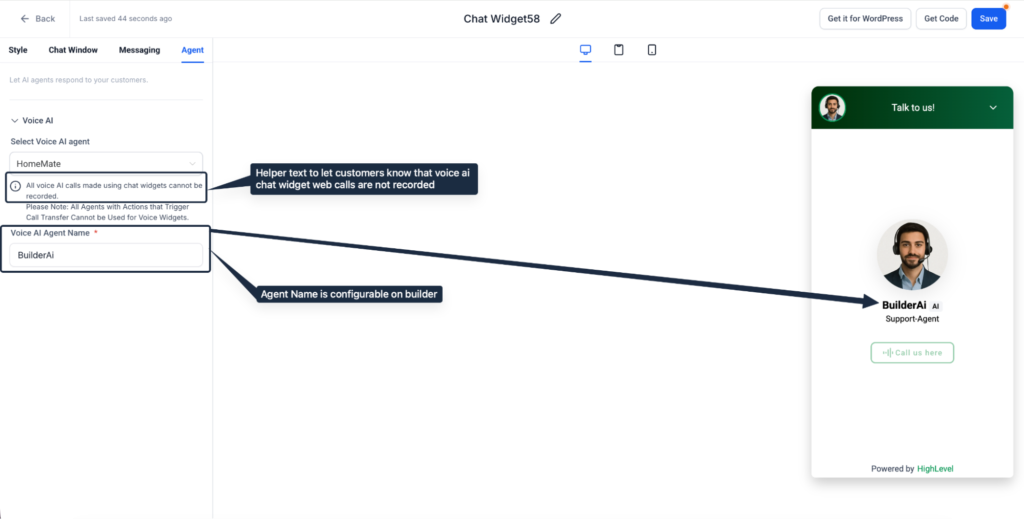
Through the mic icon, visitors can start a live voice chat. The AI is responsive, like in an actual live conversation. During the call, visitors can:
The Voice AI follows your automations and workflows to guide the conversation.
All Voice AI features work in this widget, except Call Transfer, which is not available yet.
Read this: Best 3rd Party Voice Agents for GoHighLevel
Key Benefits: Why Voice AI Converts Better Than Text Chat
Why Voice Beats Text: Real Benefits for Your Bottom Line
Voice interactions remove friction from the customer journey. They’re faster, more personal, and capture genuine intent in ways text simply can’t. Here’s what changes when you go voice.
Faster conversations
Voice is 3x faster than typing. Questions get answered in 60 seconds instead of 5 minutes of back-and-forth.
Higher intent capture
Visitors share more details when talking than when typing. Tone, hesitation, urgency, you hear it all. Better leads.
Mobile wins
Nobody wants to type on a mobile. One tap, speak, done. Mobile visitors stay on your site 2x longer with voice vs. text.
Always available
Your AI never sleeps. 2 AM lead drops in, gets instant answers, and wakes you up qualified. No sales team is working nights.
Automation at scale
While they talk, your workflows run. Collect info, book appointments, send follow-ups, and create contacts, all automated during the conversation.
Built-in security
Browser-based (no PSTN = no fraud risk). reCAPTCHA stops bot loops. Call recording notice keeps you compliant. Microphone permissions are standard browser stuff.
Install in 5 Minutes: Step-by-Step Setup
Getting voice AI live on your site takes minutes, not days. No coding required. Follow these simple steps and you’re ready to start capturing leads.
Enable in Labs
Go to Settings → Labs (or Features). Find the “Voice AI Chat Widget” toggle and turn it ON. Save the changes.
Have a Voice AI Agent Ready
If you don’t have one already, go to AI Agents → Voice AI → Create Agent. Set the agent’s greeting, what it says, and automations. This takes about 5 minutes. You’ll need this agent selected for the next step.
Create the Chat Widget
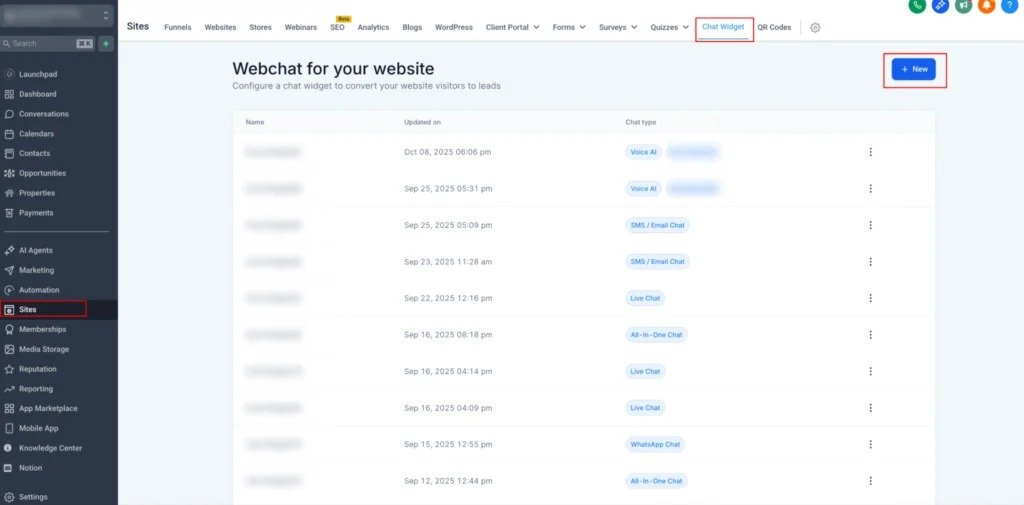
Go to Sites → Chat Widgets → New Widget. Select your Voice AI agent from the dropdown. Enter the agent name (what visitors see: “Sales,” “Support,” “Demo Assistant”). Set colors and welcome message if needed, then save.
Step 4: Embed on Your Website/ Funnel
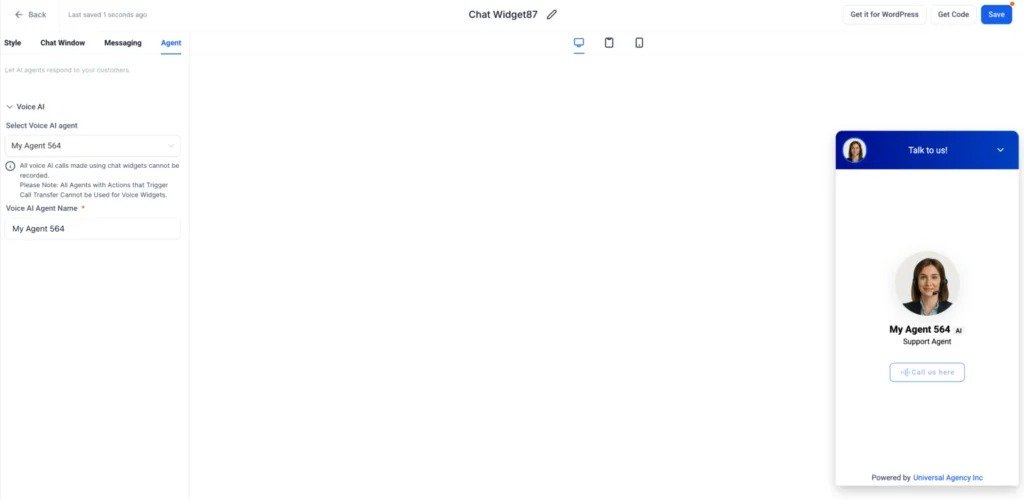
In the Chat Widget builder, click Get Code, then copy the script. Add the code to your site header or footer. Use for custom sites or sections. Use an Insert HTML Section for Wix, Shopify or Squarespace. If using a GHL funnel, add it to the page header or footer tracking code. Publish the changes.
Test
Visit your live site and click the chat bubble. Click the mic icon and allow microphone access. Speak a test message and verify the AI responds. Test mute/unmute and restart functions. Also, test on mobile devices to ensure it works across all platforms.
Features Your Visitors Will Love (And Use More)
These features make the experience so smooth, they’ll actually use it instead of abandoning your site.
Voice-Only Chat
Click mic → allow permission once → speak naturally → AI responds → hear through speakers. No keyboard needed. Visitors appreciate the zero-friction experience especially on mobile, where typing friction kills form completion rates.
Real-Time Responses
Zero lag. AI listens and responds instantly. Conversation flows like talking to a person, keeping visitors engaged. The natural back-and-forth rhythm makes visitors trust your AI more than a text bot.
Easy Mute/Unmute
One tap to mute (can still hear AI, but AI can’t hear them). Useful for background noise or privacy. Essential for office workers or anyone in a shared space they stay on the call without awkwardness.
Read this: A Complete Guide to GoHighLevel AI Voice Technology
Smooth Restarts
Disconnect and reconnect instantly without reloading the page. One tap to stop, one tap to start fresh. If the conversation stalls, visitors can reset without losing the chat context.
No Typing
Mobile killer feature. Tap mic, speak, listen, speak again. No autocorrect errors. No “did they understand me?” anxiety. This single feature converts 2x more mobile visitors than text chat because there’s zero friction.
Pro Tip
Assign a human name to your agent, such as “Nick,” “BuilderPro” or your brand name. When people feel they are talking to a person, rather than a bot, they talk longer and share more.
Where You’ll Use This (Real-World Scenarios)
Voice AI works across your entire business. Whether you’re capturing leads, supporting customers, or qualifying prospects, voice handles it all. Here’s where it makes the biggest impact.
Lead capture: Add to Pricing or Contact page. Visitors ask questions; AI collects their info automatically. Voices reveal intent faster than typed questions your team gets pre-qualified leads.
Customer support: Add to help centre. Customers ask issues verbally instead of filling out forms. Reduces support ticket volume because half your questions get answered before the ticket is created.
Demo requests: Add to the product page. Prospects ask about features; AI books a demo or sends a link. AI books that slot in at the time they are interested without needing those back-and-forth emails.
Appointment booking: Tuesday at 2 PM (AI confirms it with the visitor over the phone and adds it to your calendar). It could be compared to traditional scheduling tools (no natural language booking, no calendar UI), which are more efficient options.
Lead qualification: AI qualifies leads by asking relevant questions, recording their answers and forwarding hot leads to your team. You only speak about warm leads, not tire-kickers and bring down your sales cycle time by 40%. The Background: Things You Should Know
Concurrent calls:
20 per widget location. If a 21st visitor calls while 20 are on the line, they see “line full, try again later.” Each widget location has its own 20-call limit. Think of it like a phone line: you can handle 20 conversations at once, but the 21st person waits.
Total agents:
You can create up to 100 Voice AI agents in one account (use different agents for different pages: Sales, Support, etc.). Lets you customize what each agent says and does without building from scratch each time.
Browser support:
Safari: iOS 16+ (iPhone, iPad); Chrome & Edge: All recent versions (desktop & mobile). Firefox: Recent versions. Permission persists after the first “allow” (except in private/incognito mode). Not compatible with old iOS versions; visitors need to update.
No phone system required:
Calls happen in the browser via WebRTC. No PSTN (phone network). No toll fraud risk. No unexpected phone bills. No phone number needed. You’re not renting phone lines; it’s all internet-based.
Security That Keeps You Compliant
Voice data is sensitive. Your visitors trust you with their words, and regulators expect you to protect it. This is how we handle both.
Call recording notice:
Widget displays “All voice AI calls made using chat widgets cannot be recorded.” Transparent. Protects you both. This notice is legally necessary in two-party consent states, where you’re covered.
reCAPTCHA protection:
If someone connects/disconnects 10 times in 60 seconds (bot behavior), reCAPTCHA kicks in. User checks “I’m not a robot.” Stops spam bots from hammering your AI agents and running up costs.
Browser permissions only.
Standard microphone permission through your browser. No unusual access requests. Industry-standard privacy visitors won’t get privacy warnings.
FAQs
Do visitors need a phone number?
No. The major point is that your Voice AI Widget works through your website itself, using the microphone and speaker of a browser! Without sharing a phone number or downloading an app, visitors can simply click the mic icon and speak through their device.
Do they need to install an application?
No. It’s a web widget embedded directly in your website. No need to install any app. You click on the mic icon in the chat bubble, and it takes you to your site. Usable on any device with a mic and within any browser.
Is it recorded?
No. The widget displays a notice stating “All voice AI calls made using chat widgets cannot be recorded.” This is a design feature for compliance, especially in two-party consent states. All conversation data is captured in your CRM for context, but the actual audio isn’t stored.
Is it mobile-friendly?
Yes. It works with iOS 16+ (Safari, Chrome, Edge), Android (Chrome, Edge, Firefox) and desktop browsers. After a visitor has been permitted to use the microphone on their device, they will not need to give permission again for future conversations on that device.
What’s the cost of the Voice AI Widget in GoHighLevel?
The Voice AI Widget is included in your GoHighLevel subscription at no extra cost. There are no per-call charges, no setup fees, and no additional charges based on usage volume. You pay one monthly GHL fee and get unlimited voice AI conversations.
Ready to Launch? Here’s What’s Next
Create or verify that you have a Voice AI agent (AI Agents → Voice AI). Enable Voice AI Chat Widget in Labs. Build a new Chat Widget, select a Voice AI agent, copy the script and embed it on your site. Test on desktop and mobile.
Launch to get volume quickly; start on high-traffic pages (Pricing, Contact, Demo). Look at your analytics to determine voice-to-text conversion rates and adjust your agent accordingly, according to what visitors are asking.
Conclusion
Voice AI Chat Widget makes your website a 24/7 selling machine that never sleeps, never gets tired and automatically captures each lead. Voice is 3x faster than typing and works wherever your visitors are, especially on mobile. Setup takes 10 minutes. Results are displayed in your CRM immediately. Get it now and see your conversion rates change.